
If you have received a notification about Time Machine backups it usually means there has been a period of time that have passed since your last backup was completed. We typically set that threshold at 7 days so if you haven't backed up in 7 days then typically you will get a notification on your Mac to plug in your external hard drive to back up.
If you're using a drive connected to a port on your Mac, Time Capsule, or AirPort Base Station, make sure it's powered on. If you're using a USB hub or a similar device, try connecting the drive directly to your Mac, Time Capsule, or AirPort Base Station.
How Automatic Backups Work
Once the first backup is completed, Time Machine automatically backs up files that have changed on your Mac since the last backup was performed. These backups happen when a connection between your Mac and the backup destination available. Your Mac can even perform these backups as a feature of Power Nap.
The Time Machine menu in the menu bar lets you know when a backup is happening in the background. While a backup is in progress, the menu icon includes an additional arrow.
 |
 |
  |
| idle | backup in progress |
cannot back up |
You can check the status of your backup by clicking on the Time Machine icon in the menu bar. If you see a Time Machine icon that indicates a possible issue, click the icon to learn what is preventing Time Machine from backing up.
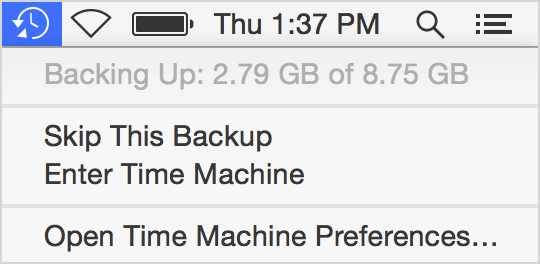
You can also manually start a Time Machine backup by selecting "Back up Now" from the Time Machine menu in the menu bar. Select this menu while pressing the Option key to see additional choices: verify your backup disk, or manually switch to a different backup disk.
Where's my drive space?
You might not always be near your Time Machine backup drive when using your Mac notebook computer. When your backup drive isn't connected, Time Machine makes copies of the files you create, modify, or delete, and stores them on your startup drive. These copies are called local snapshots. After your backup drive becomes available, Time Machine copies the local snapshots from your startup drive to your backup drive so that they're stored in both places. You can recover files from local snapshots even when you're away from your backup drive.
How to View local snapshots
When you enter Time Machine, a timeline appears on the right side of the screen. Each dated tick mark in the timeline is a backup, and each backup has a color when you move the pointer over it:
OS X Yosemite or later
- A bright red tick mark is a backup that can be restored now, either from a local snapshot or your backup drive. When your backup drive isn't available, only the local snapshots are bright red.
- A dimmed red tick mark is a backup that can be restored from your backup drive after that drive becomes available. Until then, the stack of windows on the screen shows a blank window for that backup.
OS X Mavericks or earlier
- A gray tick mark is a backup that can be restored now from a local snapshot.
- A bright pink tick mark is a backup that can be restored now from your backup drive.
- A dimmed pink tick mark is a backup that can be restored from your backup drive after that drive becomes available. Until then, the stack of windows on the screen shows a blank window for that backup.
Learn how local snapshots use storage on your startup drive
To make sure that you have storage space when you need it, Time Machine creates and retains local snapshots only when there is plenty of free space on your startup drive:
- If less than 20% of the total storage space on your startup drive is available, Time Machine removes local snapshots, starting with the oldest, until you have more than 20% free space.
- If less than 10% or less than 5GB of storage space is available, Time Machine removes local snapshots more quickly. When only one snapshot remains, Time Machine stops creating new snapshots. As free space increases, Time Machine at first replaces the previous snapshot with a new one, then eventually resumes creating snapshots as normal.
Because Time Machine removes local snapshots as needed, Finder and Get Info windows don't include them in their calculations. To see how much storage space local snapshots are using, choose About This Mac from the Apple menu, then click Storage. The space used by local snapshots is labeled Backups.
Local snapshots are automatically enabled when you turn on Time Machine, and they're disabled when you turn Time Machine off. One daily snapshot is saved for every 24 hours, beginning from the time you start or restart your computer. One weekly snapshot is saved for every week.
Time Machine status in the menu bar doesn't change when Time Machine creates or modifies a local snapshot.
0 Comments